In February 2026, VCC upgraded its Kaltura system to use modern "v7" media players for audio and video.
Enhancements and New Features
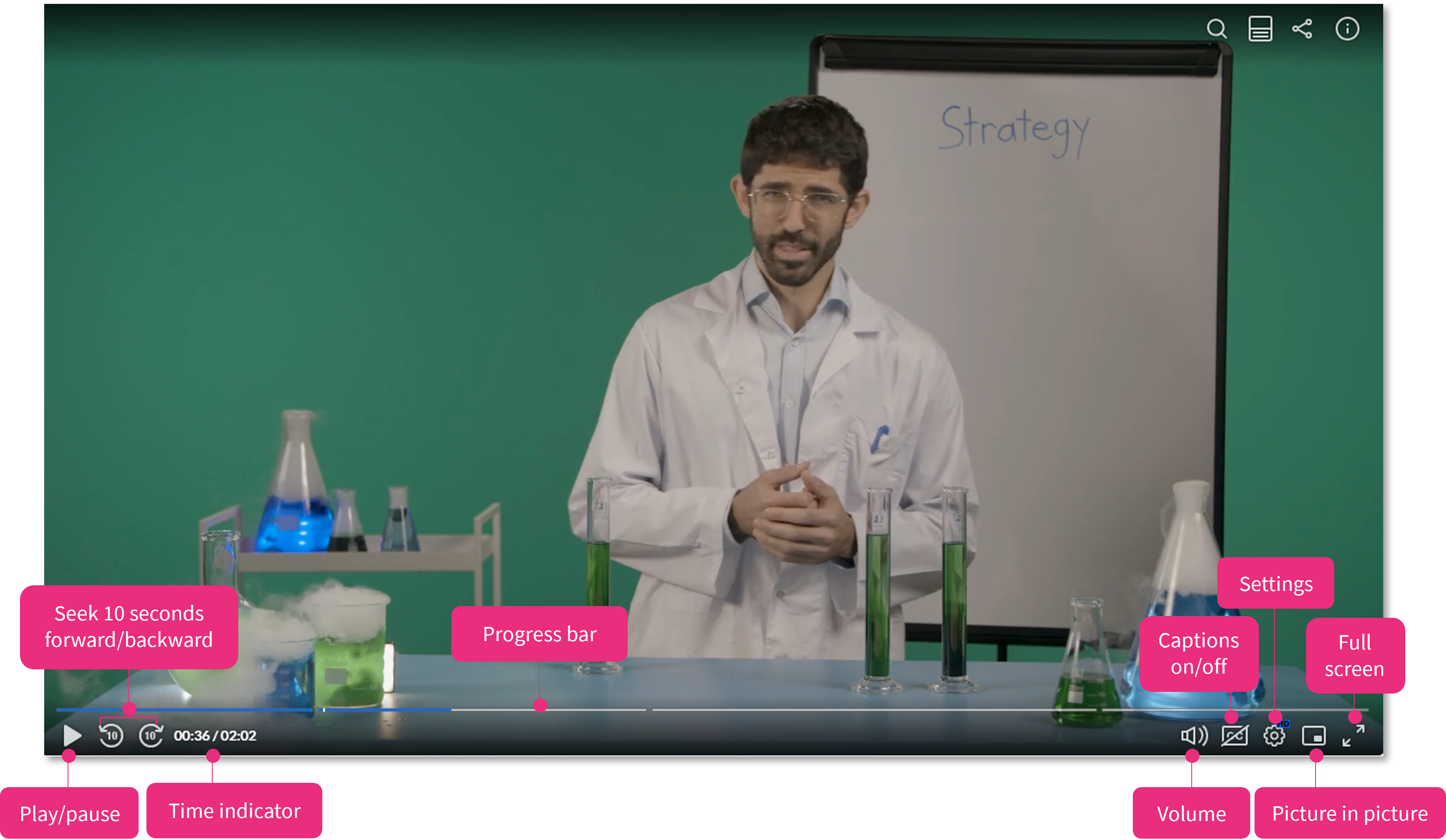
The v7 players improve usability and accessibility by providing better keyboard control, arrow key support, and JAWS compatibility. They are also more adaptable to content than before: they automatically detect media content types and change their features and layout appropriately. For example, A video with closed captions will have a built-in transcript option if you want to display a transcript block, and an audio-only entry (like an MP3 sound file) will play in an audio-only player.
For our Kaltura videos that are embedded on remote sites outside of VCC, the legacy v2 embed code is also automatically redirecting to load the media into a v7 player.
Watch a quick tour of Kaltura's v7 video player
This video gives a quick tour of the features of Kaltura's v7 video player:
Custom Kaltura Players available in the Moodle LMS
Although Kaltura detects the type of media selected and provides a player with the capabilities best-suited to playing that media, VCC has also created some custom Kaltura media players that our Moodle LMS users can select from when embedding media.
In VCC Moodle, when you select "Embed Kaltura Media" in a Moodle editor, you can select from one of these custom players in Kaltura's BSE(*) interface:
-
"Default Player" - A v7 video player that has all the features available to play and enhance accessibility for most video media.
-
"Skinless Player (No Captions)" - A v7 video player that has minimal controls and no closed captioning, for scenarios where language learners need to practice audio comprehension.
-
"Audio-only Player" - A v7 audio-only player for audio files (e.g. MP3) which presents a smaller, simpler user interface.
(* Kaltura's embedding interface is referred to as "BSE", for 'Browse, Search, and Embed'.)
Learn more:
Learn more about the differences and benefits of Kaltura's v7 media players: